
Record a Ringtone on iPhone: 5 Easy Ways [and Change It]

Recording a ringtone is a personal and fun way to make your device stand out, especially if using the same default tones tires you out. It could be your voice, favorite song, or custom sound you created. Whatever that is, the iPhone offers ways to turn it into a ringtone! The following parts will show you five ways to record a ringtone for iPhone and Android, alongside steps on how to change it once it is ready. Get a unique ringtone that sounds just the way you want today!
Guide List
Create a Ringtone with Voice Recordings and Audio Streams How to Record Your Voice as a Ringtone on iPhone with Voice Memos How to Record a Song for a Ringtone on an iPhone Make a Voice Recording as Ringtone with Audacity How to Change Your iPhone RingtoneCreate a Ringtone with Voice Recordings and Audio Streams
To record a ringtone on iPhone that sounds crisp and clear, using a high-quality recorder is the best choice. And one excellent option for this task is AnyRec Screen Recorder, a versatile program that records audio from your computer and mic with impressive clarity. Whether you wish to capture a song snippet, an instrumental, or your own voice, this audio recorder ensures top-notch output without background noise. So if you want to turn any online music as your ringtone or notification sound, just record it with AnyRec Screen Recorder.

Adjustable audio format, bitrate, and other settings.
Supports capturing audio from system sound, microphone, or both.
Trim audio recording to match the maximum ringtone length.
Has real-time monitoring and noise enhancement tools.
Secure Download
Secure Download
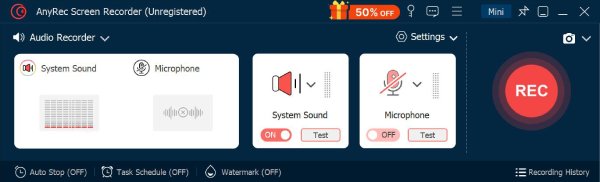
Step 1. Open AnyRec Screen Recorder on your computer and choose "Audio Recorder" from the main interface.
Activate the "System Sound" to capture the internal audio of your computer, like music or sound effects. If you plan to include your voice, enable the "Microphone" option as well.
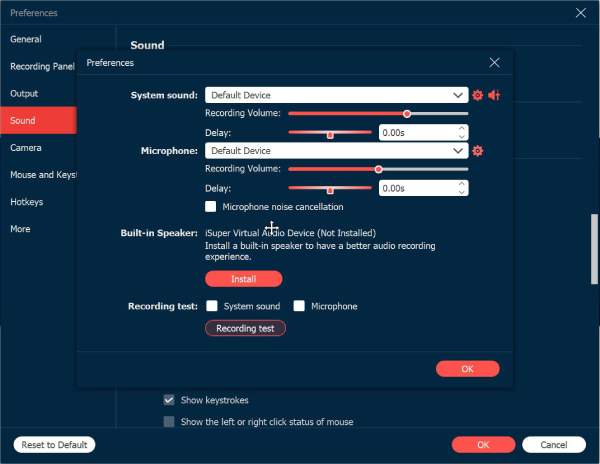
Step 2. Next, click the "Settings" button. Navigate to the "Sound" tab. Check the "Noise Cancellation" option to lessen background interference. After that, click the "OK" button to confirm and save changes.
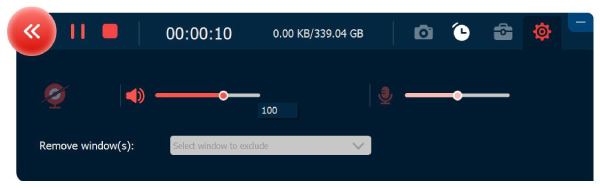
Step 3. After everything is configured, click the "REC" button to start recording your ringtone. A small control bar will appear, letting you pause, resume, or stop at any moment. You can also adjust volume levels in real time.
Step 4. When you're satisfied, click the "Stop" button to end the recording of the ringtone. Listen to it, cut out any unnecessary parts, and finally click the "Save" button to export your new ringtone to your computer.
Secure Download
Secure Download
How to Record Your Voice as a Ringtone on iPhone with Voice Memos
For a personal touch for your ringtone, why not record your voice as ringtone on iPhone? Luckily, you have the built-in Voice Memos app here, making the task quick and easy. Whether you want to record your name, a short phrase, or a funny sound, you can record an iPhone ringtone and export as MP3 audios with Voice Memos.
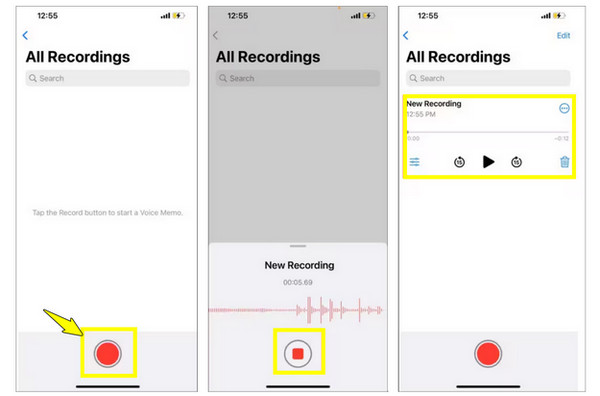
Step 1. Launch the "Voice Memos" app. Record a ringtone by tapping the "red Record" button. When you're done, tap the "Stop" button.
Step 2. Tap on your new voice memo at the top, select "Edit Recording" to trim it to less than 30 seconds.
Step 3. Later, tap the "Share" button and choose "Save to Files" to store it on your iPhone.
How to Record a Song for a Ringtone on an iPhone
Aside from using your voice, you can also record a song as your ringtone. In this process, you can record audio with GarageBand, which lets you create ringtones on your device and fine-tune audio clips to match the desired ringtone duration. This is perfect if you are a musician or simply want a snippet of your favorite song as your iPhone ringtone.
Step 1. Open the "GarageBand" app on your iPhone. Start choosing any instrument, like Keyboard or Guitar, and then tap on "Tracks View".
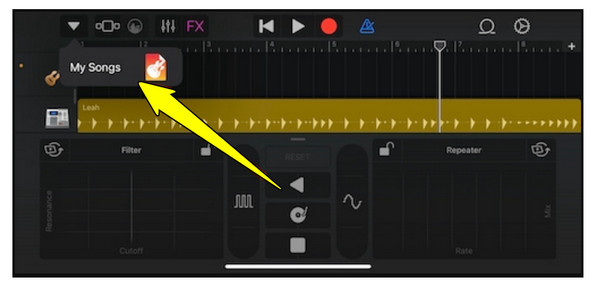
Step 2. Tap the "Loop" icon, choose "Files", and open your imported song. Drag the song onto the timeline and cut it to 30 seconds or less. Tap the "Download" button in the top-left corner and select "My Songs".
Step 3. Press and hold your project file, then tap "Share" and go for "Ringtone"; name it and tap "Export" to save it in your ringtone library.
Make a Voice Recording as Ringtone with Audacity
Wish to record a ringtone for Android and iPhone without paying? Use Audacity! You can easily record any sound, trim unwanted parts, and export the file as an M4A or WAV format for your iPhone ringtone.
Step 1. Open Audacity on your computer. From the main screen, ensure your input device is picked correctly. To record music playing on your computer, select "Stereo Mix" or a similar option as the recording source.
Step 2.
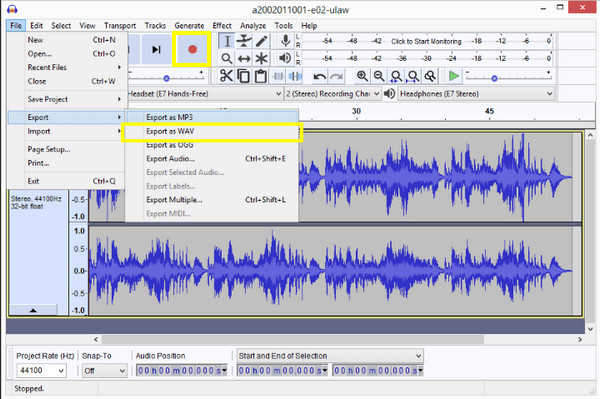
Step 3. After all that, go to "File", then "Export" to "Export as WAV" and save your ringtone on your computer. Finally, transfer the file to your iPhone using iTunes/Finder.
How to Change Your iPhone Ringtone
After all the recording of ringtones, the final step is to set it as your default ringtone on iPhone! And thankfully, iPhone makes this easy using the Settings app. Here, you can select the newly created ringtone, and it will instantly replace the default tone. You can even assign different ringtones to specific contacts.
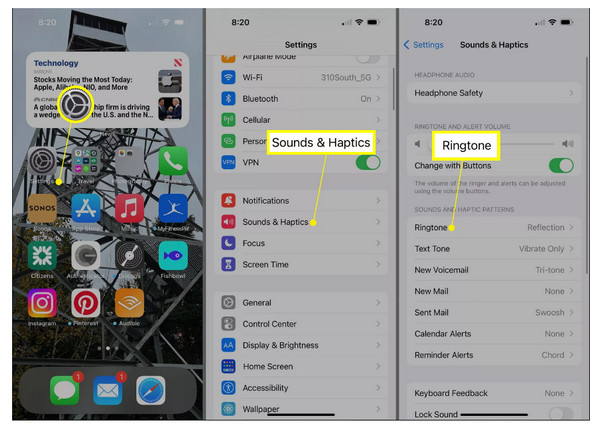
Step 1. Inside the "Settings" app on your iPhone, scroll down and tap on "Sounds & Haptics" (Sounds for older versions), and there select "Ringtone" from the "Sounds and Vibration Patterns".
Step 2. Next, browse from the list and choose your custom ringtone.
Step 3. To confirm, tap the "Done" button, and your new ringtone on iPhone is now set!
Conclusion
Whether you choose to use Voice Memos for quick voice recordings or other built-in tools, each method here gives you the freedom to record and set a song as a ringtone for your iPhone. With just a few taps, you can turn any song, from your voice to your favorite music, into a unique ringtone that matches your style. However, if you wish for a high-quality recording of audio or music clips for your iPhone ringtones, AnyRec Screen Recorder is an excellent tool. It lets you capture sound right from the system or mic in crystal-clear quality, ensuring that your recordings sound professional. Thanks to this tool, creating and saving ringtones will sound as good as they should be on your iPhone.
Secure Download
Secure Download



