
Why Is My iCloud Greyed Out: 8 Quick Fixes You Need to Try

Looking for an answer to the question, "Why is my iCloud greyed out?" while feeling frustrated because you can't sign in or out of iCloud, change its settings, access the backup, and more? If so, you're not the only one experiencing this issue, and solving it is actually relatively easy, especially if you continue reading this post. Here, you'll get to explore the eight best fixes. Go through each one and discover solutions to fix iCloud Settings greyed out.
Guide List
Common Reasons Why Is iCloud Greyed Out 7 Solutions to Fix iCloud Greyed Out Problem on iPhone Professional Way to Backup Data without iCloud [No Data Loss]Common Reasons Why Is iCloud Greyed Out
Before you make yourself busy in troubleshooting the iCloud greyed out issue, you can first explore the reasons behind the question, "Why is my iCloud greyed out in settings?". There are several reasons why iCloud may be greyed out, preventing access to key features. Understanding these reasons helps you know where to start and which settings to troubleshoot.
1. Unstable Internet Connection
iCloud needs a steady internet connection to work correctly. Make sure your iPhone or iPad is connected to Wi-Fi or has cellular data turned on. Sometimes, using iCloud on a public or office network can also cause issues.
2. iCloud Servers are Down
Another reason explaining why Apple account is greyed out in Settings is that iCloud servers might be down. Even Apple's servers aren't perfect. iCloud may be temporarily unavailable during a server outage, though most of the time these issues last only a few minutes.
3. iCloud Account Issue
Aside from that, your iCloud account itself might have problems. This could include payment issues, a locked account, or the whole iCloud storage. Any of these issues can prevent iCloud from working correctly.
4. iOS Version Issue
Running an outdated version of iOS or experiencing an interrupted update can sometimes cause iCloud greyed out in iPhone Settings.
5. Content and Privacy Restrictions
Apart from those reasons, Screen Time's Content & Privacy Restrictions can also block access to some features. If you or someone else turned these on to set limits, it could make iCloud appear greyed out.
6. Configuration Profiles Restrictions
Lastly, if you installed configuration profiles from your school or workplace, they could be limiting access to specific settings on your device. This might be why iCloud is greyed out.
7 Solutions to Fix iCloud Greyed Out Problem on iPhone
Now that you know the reasons that might trigger you to wonder why my iCloud is disabled, it is time to move to the part of solving it with this post's 8 best fixes! Perform each method below and identify which one works on your end! If you are in hurry, you can also transfer all data from old iPhone to new iPhone without iCloud using other alternatives.
1. Ensure Your Internet Connection is Stable
The first thing you can do to fix the issue is to check whether you are connected to a stable internet connection. If it is unstable, try restarting the router your device is connected to. If you are using cellular data, ensure it is turned on; if it is, you can turn it off and then back on to refresh the connection.
2. Check if the iCloud Server is Down
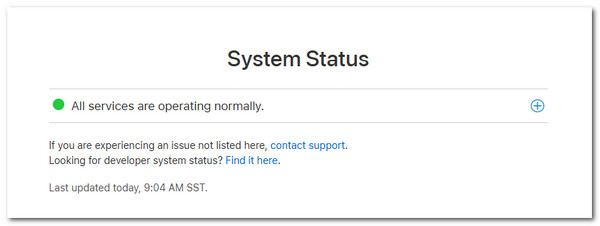
Another thing you can do to fix can't access iCloud or Apple ID account is to check whether the iCloud server is down, which is unlikely to happen. When the iCloud server is down, it may hinder you from accessing specific features and settings.
To check this, go to Apple's System Status webpage to see if iCloud services are down. If they are not marked with green dots, then the service is down, and you will need to wait a few minutes for Apple to fix it.
3. Fix iCloud Account Issues
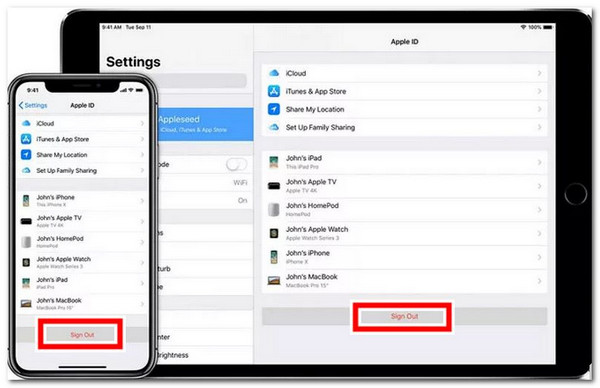
The next thing you can do to fix the iCloud greyed-out issue is to sign out and sign back in to your iCloud. Any minor issue with your iCloud account can also trigger the problem. Here are the steps you need to follow to fix iCloud photos not syncing, function not working, and other issues.
Step 1.Go to the Settings application and tap your Apple ID at the upper part. Then, look for the "Settings" option and tap the "Sign Out" option.
Step 2.Next, if prompted, enter your Apple ID credentials and tap "Turn Off". Once you are signed out, sign in again by tapping "Sign in" in "Your [device]".
Step 3.Lastly, enter your Apple ID credentials and check whether this option solves the iCloud greyed out issue.
4. Update iOS version
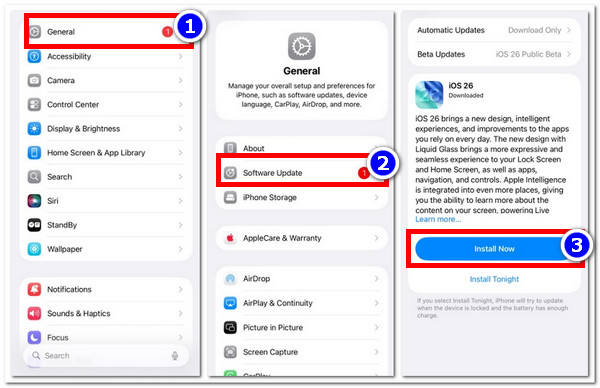
If you haven't updated your device's iOS version, this may be one reason for Apple ID greyed out on iPhone. Updating to the latest version ensures compatibility with iCloud services and resolves potential bugs.
- 1. To update your device, go to Settings.
- 2. Tap "General," and select "Software Update."
- 3. Then check whether an update is available. If there is, download and install it.
5. Remove Screen Time Restrictions
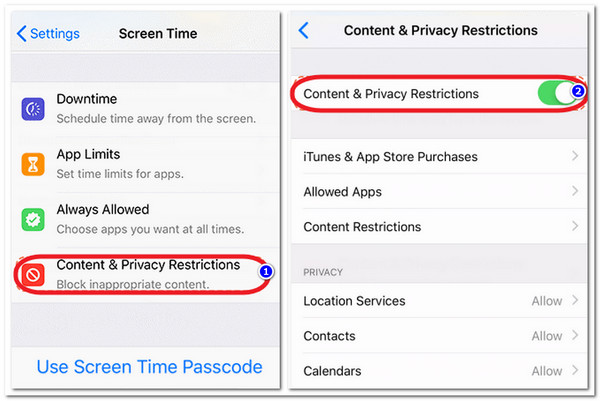
Apart from those fixes, you can also try disabling Screen Time restrictions if they are turned on. Having this restriction enabled is likely the reason your iPhone iCloud is greyed out. Now, to turn the restriction off, perform these simple steps:
Step 1.Head to the Settings app, go to "Screen Time", choose "Content & Privacy Restrictions", and enter your Screen Time passcode.
Step 2.If the Content & Privacy Restrictions are on, scroll down to the "Allow Changes" section.
Step 3.After that, select "Account Changes" and toggle the switch from "Don't Allow" to "Allow". Then, check whether it solves the problem.
6. Manage Installed Profiles
The next thing you can do to resolve "why is my iCloud account greyed out on my iPhone" is check for configuration profiles installed on your device. Schools or workplaces often add configuration profiles to manage devices and can restrict access to certain features, including iCloud.
To check, go to "Settings" on your iPhone, choose the "General" option, and go to the "VPN & Device Management" section. Next, tap the "Remove Profile" option.
7. Reset Network Settings
The last option you can do is to reset all settings on your iPhone. This can often fix the problem of your Apple ID staying greyed out by removing any restrictions or configurations that may be affecting it. To do this, follow these steps:
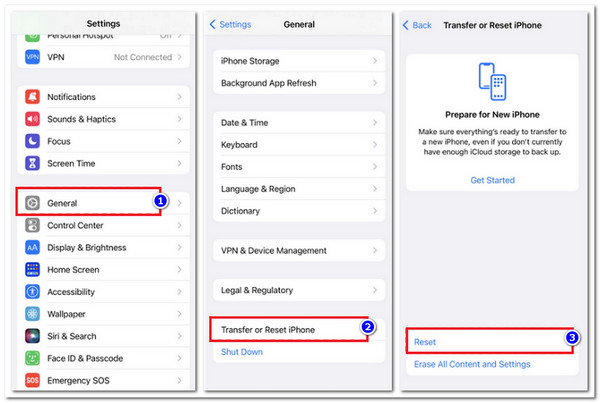
Step 1.Open the "Settings" application on your iOS smartphone, then select the "General" option from the list.
Step 2.Next, tap "Reset" and then select the "Reset All Settings" option. After that, enter your password for process confirmation.
Step 3.Once your device settings return to their default, you can now fix greyed-out iCloud.
Professional Way to Backup Data without iCloud [No Data Loss]
That's it! These are the seven best fixes you can try to fix iCloud function greyed out. There are times when iCloud can be problematic, and backing up data to it will eventually fill up your storage space. If you want an alternative way to back up data without iCloud, the professional AnyRec PhoneMover is a solid option. You can use it to back up all types of phone data without iCloud to any device, whether a mobile phone or a desktop computer. With just a few clicks, you can back up all the data you want without worrying about data loss, wiping existing phone data, or internet connectivity, since you can back up your data without relying on the internet.

Enables you to select which specific data to transfer and what is not.
Scan, skip, delete, and merge duplicated contacts, photos, and more.
Back up phone data at high speed, unlike iCloud, and without any file size limits.
Allows you to back up data between iOS and Android phones, and from Phone to PC.
Secure Download
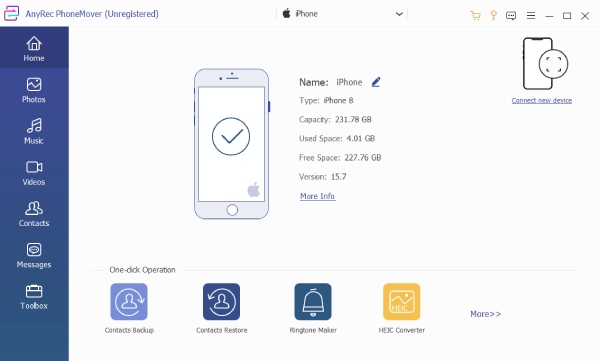
Step 1.Install the AnyRec PhoneMover on your computer. After that, link your phone to the computer using a USB cable, then launch the tool. Then, trust the computer, and you will see the various information about your device.
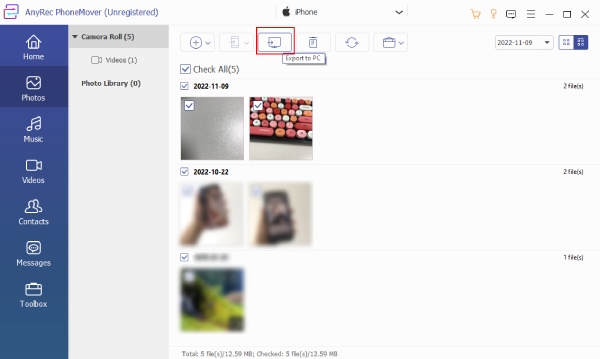
Step 2.Next, suppose you wish to back up your device's photos first, select the "Photos" option on the left side, then tick the checkboxes of the images you want to transfer to select them. After that, click the "Transfer to PC" button to proceed.
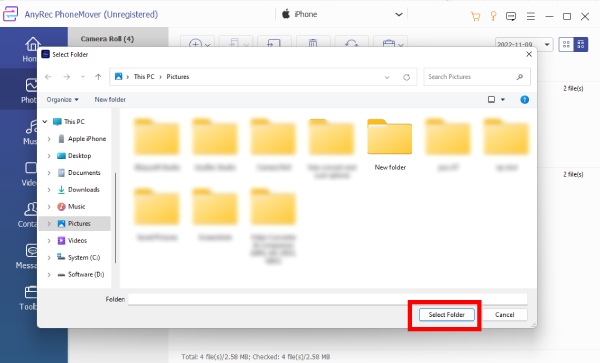
Step 3.Then, choose or create a new folder on your computer to store the photos. After that, click the "Select Folder" button to confirm, and the phone backup process will start.
Conclusion
With the fixes above, you can finally free yourself from frustration while dealing with the question, "Why is my iCloud greyed out?" Through these eight fixes, you can easily overcome the issue and sign in or out of iCloud, change its settings, access backups, and more. However, if the problem persists, you can contact Apple Support, let them know what's going on, and allow them to help you resolve it. If you are looking for an alternative way to back up data that offers a much better service than iCloud, then you need to try AnyRec PhoneMover!
Secure Download



