
What's the UK DVD Region? All Things You Need to Know in 2025

If you have ever bought a DVD from another country, like the UK, you might have faced frustrating playback issues. This is due to DVDs being locked by region codecs. So, the UK DVD region should be compatible with the DVD player you're using. What's the UK region code, then? This guide today will break down everything you need to know about the UK DVD region code, including what it is, how to check the region, and ways to enjoy UK DVDs no matter where you are. Start now!
Guide List
What DVD Region Code is in the UK How to Check the Region of Your DVD Can I Play UK DVDs in the US and Other Countries Play DVD and Blu-ray Discs in All Regions on Windows and MacWhat DVD Region Code is in the UK
DVD region code is a crucial part of a digital rights management system as it controls the distribution of DVDs based on geographic regions. These codes restrict where a DVD disc can be played, helping studios manage release dates, pricing, and content variations across different countries. What about the UK DVD region?
The United Kingdom has DVD Region Code 2. This region also includes much of Europe, the Middle East, Japan, Egypt, and South America. So, if you're purchasing DVDs in the UK, ensure your disc player is working with Region 2 discs. Likewise, DVDs in Region 2 won't work on DVD players from countries that use a different region code unless it is region-unlocked.
How to Check the Region of Your DVD
Before you play a DVD, confirm first that it is workable with your DVD player, especially if you bought it from another country or online. Here's how you can check the region of your DVD easily to ensure the UK DVD region:
- 1. Look at the DVD Case or Packaging. Most DVD discs have their region code displayed on the back of the case. It appears as a globe icon with a number inside.
- 2. Identify the Region Number/Letter. If the packaging shows Region 2, the DVD is made for the UK and most of Europe. Meanwhile, for Blu-ray discs, you will see Region B for the UK, Europe, Australia, and Africa.
- 3. Check the DVD Menu. Some discs may also include the region code once inserted into a player or printed on the front of your DVD disc.
- 4. Test the DVD on Your Player. If all else won't work for you, and you're still unsure if it’s UK DVD region, try playing it. If the player is not compatible, you'll likely see an error code message.
Can I Play UK DVDs in the US and Other Countries
Now that you know the UK DVD region, you may wonder whether they will play on devices in the US or other countries where you are. The answer is not usually by default. However, there are four reliable ways you can try to work around this limitation.
1. Purchase a Region-Free DVD Player
A multi-region or region-free DVD player is tailored to play DVDs from any region, such as the UK region 2, without restrictions. Using these players, region codes are ignored, and they'll just let you enjoy international DVDs with ease. Of course, you can play USA DVD in UK directly too.
2. Change the DVD Player/Drive Region
Most computer DVD drives let you manually adjust the region code up to five times. Do so in your computer's device settings. Go to "Device Manager" then "DVD/CD-ROM drives". Right-click on your drive, select "Properties", and then head to the "DVD Region" tab and choose the appropriate region.
3. Convert UK DVD to Digital Videos
Use a DVD ripping software at this point. Extra video content from your UK DVD and convert it into standard digital formats like MP4 or AVI. Doing so will remove the UK DVD region code restriction and allow you to watch the content on any device, including computers, tablets, phones, and smart TVs.
4. Copy UK DVD Region to a Blank Disc
Another way is to create a region-free copy of your UK DVD. Here, use a specialized DVD copy software, cloning the contents onto a blank disc and removing the restrictions in the process. And once copied, the new disc can be played in nearly all standard DVD players around the world.
Play DVD and Blu-ray Discs in All Regions on Windows and Mac
After knowing the UK DVD region and that region codes can restrict playback, the next crucial step is ensuring you can play DVDs and Blu-rays from any area, without any issues. And the best way to do it is by using a region-free media player, AnyRec Blu-ray Player. It is a powerful yet friendly tool that handles discs from all over the world. It supports not only DVDs and Blu-rays, but also ISO files, folders, and even HD and 4K video files. Regardless of where your disc came from, this player ensures you get a smooth playback, enjoy easy controls, and high-quality output.

Play all types of DVDs and Blu-rays from all regions, including UK Region 2.
Utilize advanced audio decoding to give you superior sound quality.
Customizable playback options like subtitles, audio tracks, and screen capture.
Cover ISO files, disc folders, and HD, UHD, and 4K DVD resolution.
Secure Download
Secure Download
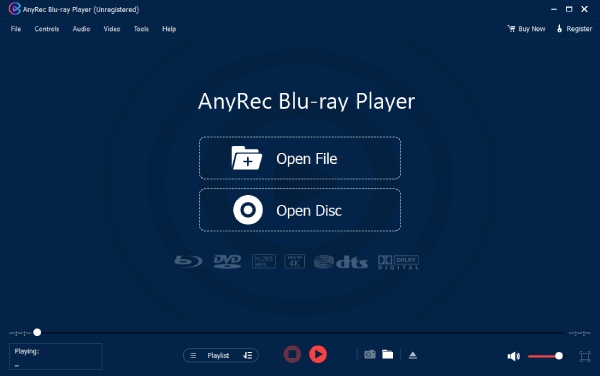
Step 1.After launching AnyRec Blu-ray Player, insert your DVD/Blu-ray into your disc drive. Connect an external drive first if your computer does not have a built-in drive. Then, click the "Open Disc" button and choose your inserted disc.
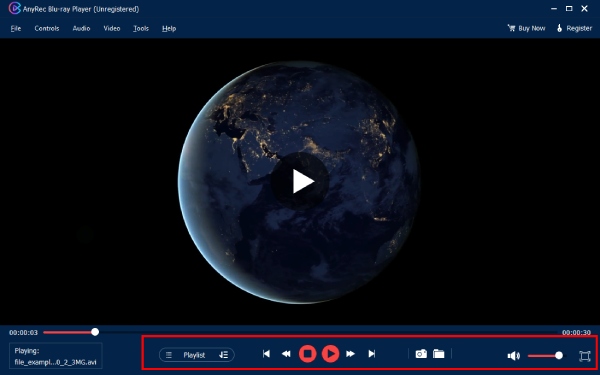
Step 2.Once the disc loads, select your preferred audio track and subtitle from the menu. Click the "Play" button to start watching your movie or show in UK DVD region. Use the on-screen control panel to adjust volume, take snapshots, and more.
Conclusion
Understanding the UK DVD region is necessary if you plan to buy or play DVDs from the UK or other countries. You've seen today what region code the UK uses, and trying to play these discs on players from different countries may lead to compatibility issues. But with the right tools, you can easily check the region and find ways to bypass these restrictions. For the most straightforward option, use AnyRec Blu-ray Player to play discs from all around the world. It is powerful, friendly software that plays discs from any region right on your computer without compromising quality.
Secure Download
Secure Download



