
TikTok Screenshots: Answer, Tips, and Privacy Settings Guide

Screenshots are a way to capture and save memorable moments from social media. From viral dance moves to funny conversations, you want to take TikTok screenshots. However, privacy concerns arise, whether TikTok notifies of every capture. Therefore, this complete guide answers everything clearly, from "Does TikTok notify screenshots?" to safely capture TikTok on PC and mobile, and more. Dive in now and find out what happens when you press that screenshot button.
Guide List
Does TikTok Notify When You Screenshot Can You Prevent Being Screenshot on TikTok How to Screenshot TikTok on PC and Mac 2 Ways to Screenshot TikTok on iPhone and AndroidDoes TikTok Notify When You Screenshot
Many other social media platforms, like Snapchat, have features to notify when someone captures a screenshot. Thus, you may be curious if TikTok screenshots are being detected and informed as well.
To simply answer: No, TikTok does not notify you when you take screenshots of someone's profile, video content, messages, live, or comment section. You can capture anything within the TikTok app without the creator receiving any alert or message that you've done so.
Can You Prevent Being Screenshot on TikTok
Given that TikTok does not notify screenshots, you're still concerned about your privacy or unauthorized use of your videos, so you look for methods to prevent being screenshot in the first place. However, you cannot completely prevent someone from taking a screenshot of your TikTok content.
While that's the case about screenshotting on TikTok, you can still use several privacy settings to limit who can view and potentially screenshot your TikTok content. You can do the following:
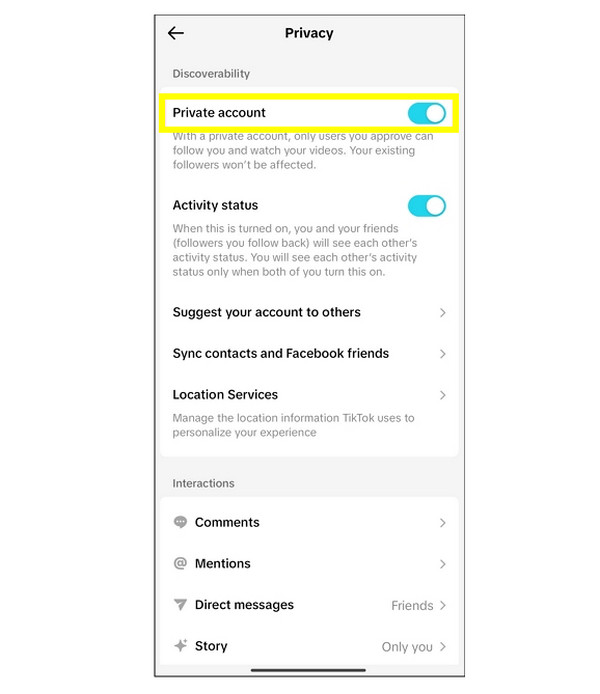
• Set Your Account to Private. Once you've set your TikTok to private, only your approved followers can view your videos. Do so by going to your "Profile", then tap on the "three-bars" and select "Settings and Privacy". There, select "Privacy" and toggle on the "Private Account" switch.
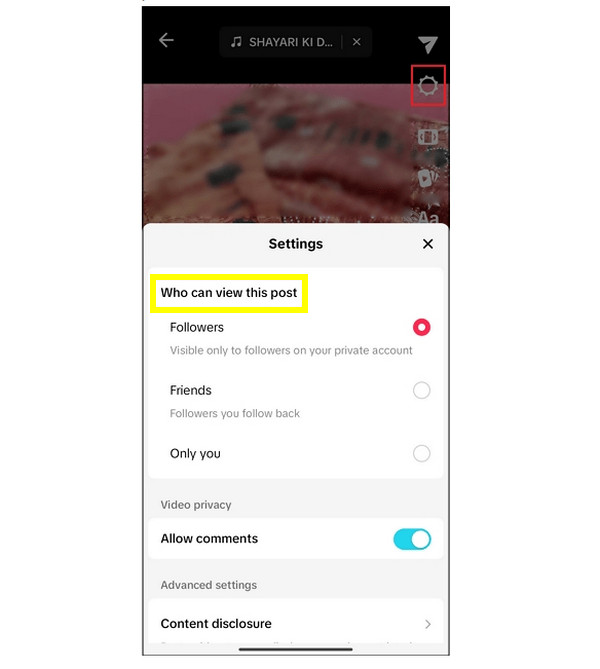
• Limit Who Can Watch Your Content. In addition to privacy for your account, set visibility for your post. When uploading a video, choose to limit who can see it to "Friends" (users whom you follow back) or "Only You" (private). And you can block someone on TikTok to keep your content safe manually.
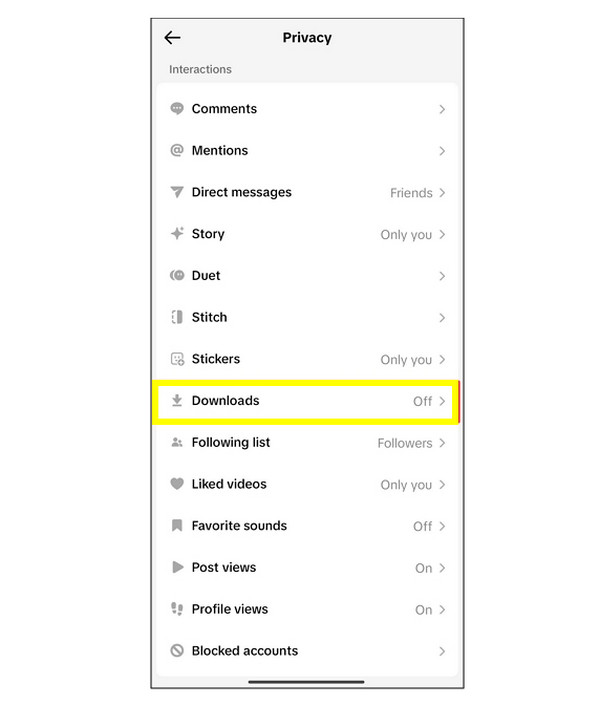
• Disable Downloading. You can stop users from saving a copy of your video, too, by turning off the download function. Just go to "Settings and Privacy", then "Privacy", tap on "Downloads", and switch the button to off. However, people can screen record a video on TikTok without any download button.
How to Screenshot TikTok on PC and Mac
TikTok is primarily built for mobile users, but you can browse videos, comments, and creator profiles through a desktop browser, too. This lets you take TikTok screenshots directly on your PC, especially if you wish for clearer images than what mobile captures provide. Do it with AnyRec Screen Recorder. This tool allows you to take HD screenshots of any area on your screen, whether you're focusing on a TikTok video frame, a comments section, or a full desktop view. It also covers multiple output formats, such as JPEG, PNG, MP4, MOV, AVI, and WMV, and has handy editing tools such as trimming, converting, and other enhancements before saving your file.

Capture the entire screen, a selected window, or a custom region.
Customize output quality, resolution, and more settings based on your needs.
Edit, trim, or refine your screenshot before saving it to your device.
Take quick screenshots even while recording TikTok content without quality loss.
Secure Download
Secure Download
Step 1. Open AnyRec Screen Recorder. Click "Screen Capture" from the main screen. So you can access the screenshot tool. Your cursor will switch to a crosshair, letting you drag and highlight the specific TikTok area you wish to capture.
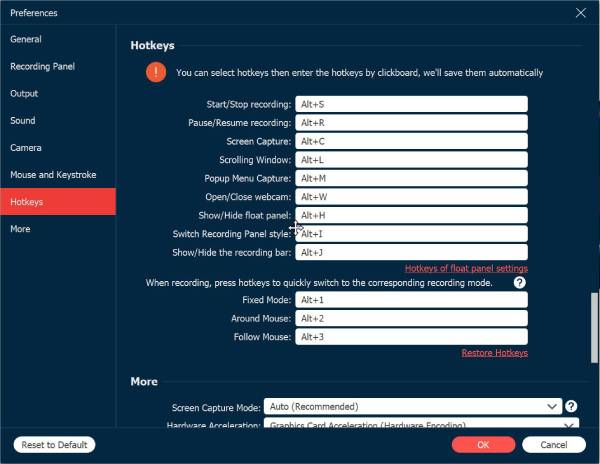
You can also launch the screenshot tool instantly using your personalized hotkey. To view or change this shortcut, go to "Settings" and select "Hotkeys".
Step 2. After dragging and selecting the TikTok area, the screenshot will be taken right away. The built-in editor will appear automatically, giving you options to annotate your screenshot. You can add shapes, text, arrows, or highlights to emphasize parts of the TikTok content.
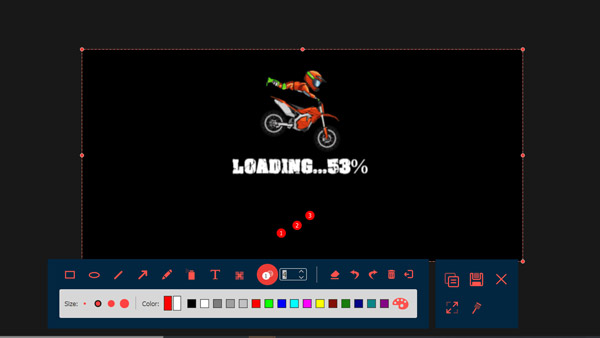
Step 3. When you're done customizing, click the "Save" button to export the TikTok screenshot to your computer. Select your preferred output folder and file format. And that's it, you have taken a high-quality TikTok screenshot on your PC!
Secure Download
Secure Download
2 Ways to Screenshot TikTok on iPhone and Android
When creating TikTok screenshots, many users look for more than just the basic buttons on their phones. You may need scrolling screenshots for long TikTok comments or editing tools to highlight specific parts of a video. So, before concluding this post, here's a section for two of the best mobile apps that make saving TikTok screenshots easier and clearer.
1. Screenshot Easy - Quick Capture for TikTok Screenshots
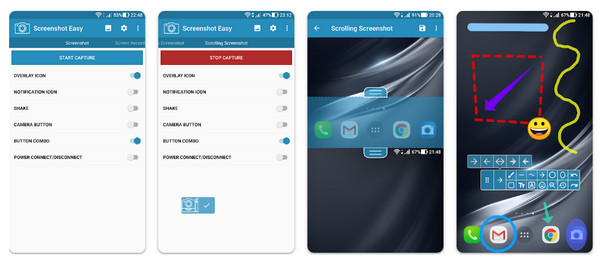
Screenshot Easy offers multiple ways to capture screenshots, such as floating buttons, notification toggles, and even shake gestures. So it is easy to capture the TikTok feed while scrolling. It also has simple annotation tools, allowing you to crop or highlight parts of the screen before saving.
2. LongShot - Long TikTok Comments and Feeds
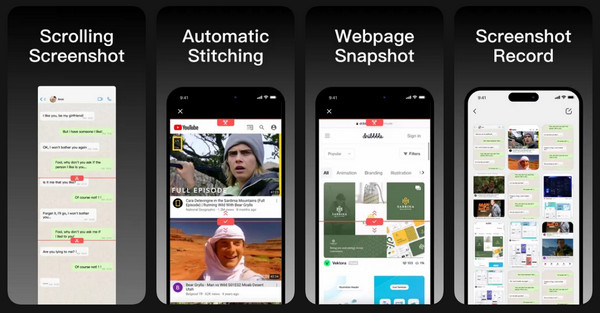
Especially useful for capturing long TikTok communication sections or anything that needs scrolling, LongShot takes scrolling TikTok screenshots automatically or allows you to stitch pictures together for your desired alignments manually. For TikTok users who want full-page or extended screenshots quickly, LongShot delivers both convenience and accuracy.
Conclusion
Ultimately, TikTok screenshots are far less guarded than other platforms, not notifying any users when someone captures their videos, profiles, or messages. While it does not notify TikTok screenshots, it's nice to respect the privacy of the creator. Besides that, you've seen here how to limit and control who can access your TikTok content. And if you want a high resolution for capturing TikTok on your computer, rely on AnyRec Screen Recorder. This dedicated software lets you capture any area of your screen, giving you clean, high-quality screenshots and recordings of TikTok videos without any watermarks.
Secure Download
Secure Download
Related Articles:
About Our Author




