
How to Share Notes from iPhone to iPhone? 4 Easy Ways Here

Sharing notes from iPhone to iPhone may look harder at first, but thanks to Apple's built-in features, you can do so easily! Do you wish to send a single note, perhaps an entire collection? Apple makes it simple for you to keep your notes accessible across your Apple devices. Today's guide will walk you through 4 easy ways to share notes and collaborate on iPhone, helping you stay organized and connected no matter which device you're using.
Guide List
How to Share a Single Note from iPhone to iPhone via iMessage How to Sync All Notes Between iPhones Using iCloud How to Share & Collaborate on Notes with Other People The Ultimate Way to Transfer & Sync All Notes from iPhone to iPhoneHow to Share a Single Note from iPhone to iPhone via iMessage
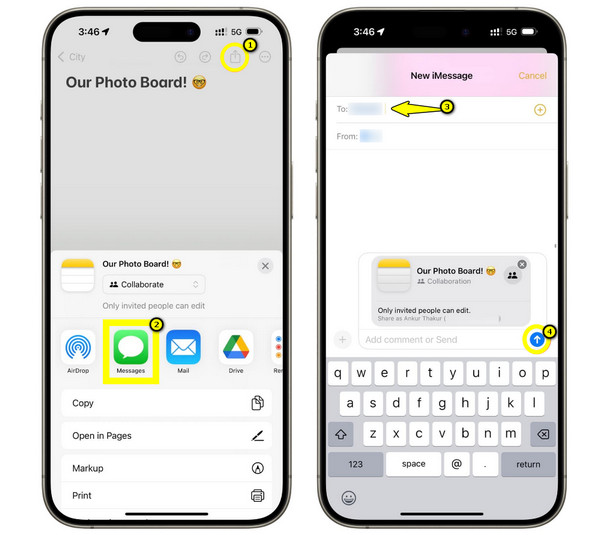
If you're looking for a free way to share a single note from one iPhone to another, here's iMessage for you. This approach allows you to send a copy of your note right away to another iPhone user nearby, without syncing your entire Notes app.
Step 1.Start the "Notes" app on your iPhone. Determine and tap the note you wish to share, then tap the "Share" button.
Step 2.Select the "Messages" from the share options. Enter the recipient details, like contact number or phone number.
Step 3.Tap the "Send" button to transfer one note from old iPhone to new iPhone via iMessage.
How to Sync All Notes Between iPhones Using iCloud
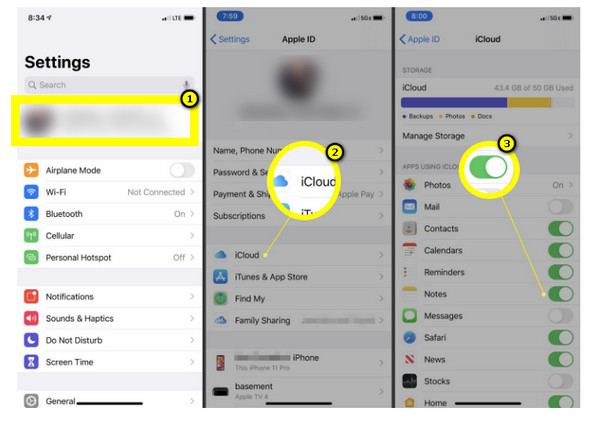
Suppose you're using multiple iOS devices, or you want your notes to appear on your other device automatically. For this, iCloud is the best option to share notes from iPhone to iPhone. This way ensures that any note you create, edit, or delete on one device updates on your Apple devices automatically based on same Apple ID.
Step 1.On both iOS devices, head to "Settings", tap on your "Apple ID name" at the top of your iPhone screen, then go to "iCloud".
Step 2.Scroll down and find the "Notes" app, and turn on its switch button. Please wait a few moments while your notes sync to iCloud.
Step 3.Open the "Notes" app on your other iPhone and view all synced notes.
How to Share & Collaborate on Notes with Other People
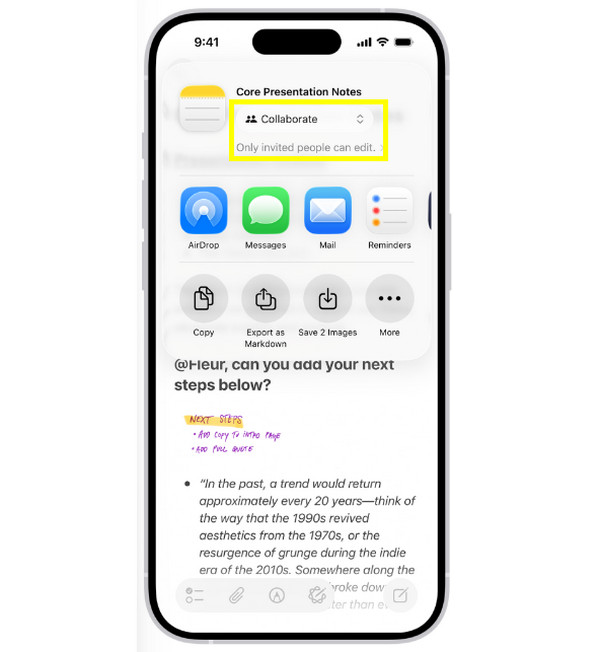
What about sharing notes and collaborating on a new iPhone in real-time? It is ideal for group projects, shared reminders, or family lists. Thus, anyone can update new notes that appear instantly on each other's device.
Step 1.Inside the "Notes" app, choose the note you wish to share. Tap the "Share" button, then select the "Collaborate" option.
Step 2.Then, select how you want to send the invitation, whether via Messages, Mail, or another app. Next, choose your desired permissions, e.g., "View only".
Step 3.Now, send the invitation to all the people you wish to collaborate with.
The Ultimate Way to Transfer & Sync All Notes from iPhone to iPhone
While the first three ways are convenient for sharing multiple notes from iPhone to iPhone, especially iCloud and iMessage, they rely heavily on internet connectivity or Apple ID access. For a faster, more flexible, and complete solution to share notes from iPhone to iPhone alongside other important data, use AnyRec PhoneMover! This software is an all-in-one data transfer and management solution that lets you move all your notes, photos, contacts, messages, and other files between iPhones effortlessly. It does not require Wi-Fi or an Apple ID, just a simple USB cable, and you can transfer notes and folders with just a few clicks. Plus, it allows you to preview and select specific notes before transferring, making it perfect for users who want more control.

Transfer notes at once or select from one iPhone to another in seconds.
Preview notes and other data before transferring to avoid duplicates.
Keeps all content, structure, and formatting intact during transfer.
Offers high-speed transfer via USB connection without data loss.
Secure Download
Step 1.Launch AnyRec PhoneMover on your computer. Next, connect both iPhones to it using a USB cable, and tap on "Trust" in the notification that appears on each device to allow access.
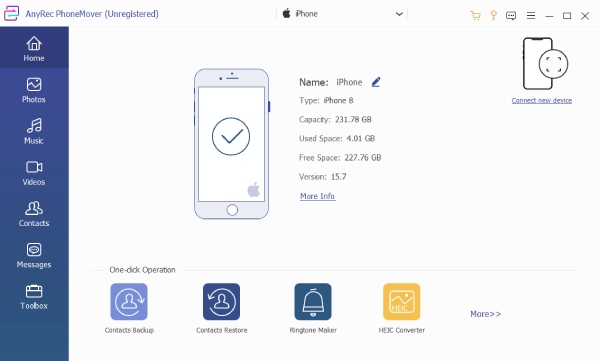
Step 2.Once detected, set your old iPhone as the source device, and there you will see all its details on your screen. From the left panel, look for "Notes" or other data types you wish to transfer.
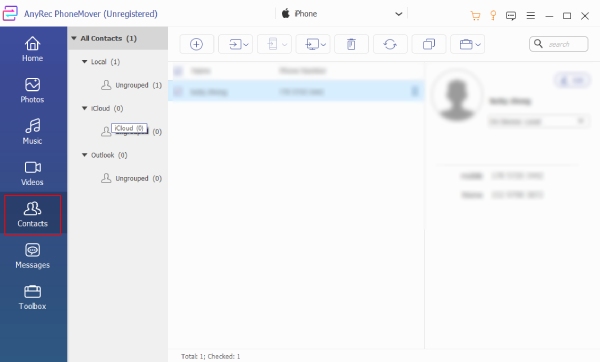
Step 3.Choose everything you want to sync by checking the boxes. Once done, click the "Export to Device" button and select the new one as the destination, and the transfer process will start.
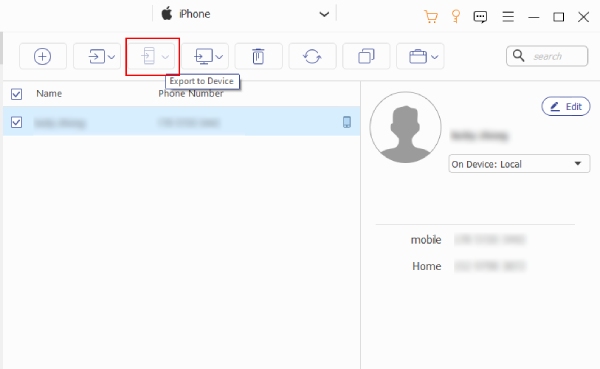
If you want to transfer notes from iPhone to Android, you can connect Android to this computer, and then select Android as the output device.
Conclusion
With those ways mentioned, you can now quickly share notes on iPhone with or without a computer! Whether it is a single, an entire collection, or maybe collaborating with someone, there's a method that suits your needs. From instant sharing using iMessage to automatic syncing in iCloud, Apple keeps your notes accessible across multiple devices simply. However, if you wish to share notes together with other data from the iPhone seamlessly, use AnyRec PhoneMover! With a tool like this, you can transfer audio notes and text notes between iPhone, iPad, Android, and PC flexibly.
Secure Download



