How to Access iCloud Email? 4 Easy Ways to Try on All Devices

Wondering how to access iCloud email? You're not alone. Many users feel unsure about how to open or access their iCloud Mail, especially when switching to a new device, using a web browser for the first time, or recovering a forgotten password. This article provides four easy solutions to help you sign in, view, and manage your iCloud emails effortlessly on any device, and understand the simplest ways to see iCloud email. Explore each of them below.
Guide List
How to Access iCloud Email on the Web (Using a Browser) How to Access iCloud Email on Your iPhone or iPad How to Set Up iCloud Email on a Mac with Mail App How to Access iCloud Email on a Windows PC Troubleshooting: Common iCloud Email Access Problems & FixesHow to Access iCloud Email on the Web (Using a Browser)
The first solution to access your iCloud email is through a web browser. This method is convenient and quick, especially if you are using a Windows computer or a device that doesn't have the Mail app. By the way, you can download photos from iCloud website on your phone or computer directly too.
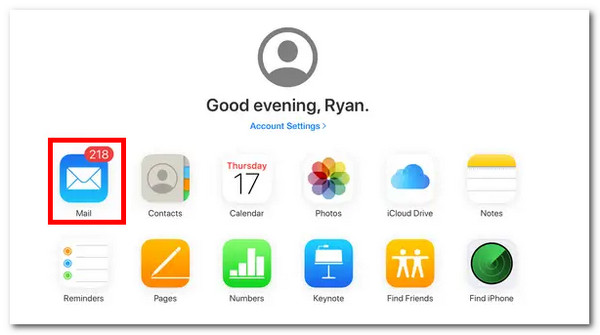
Step 1. Open your browser. Navigate to iCloud's website (https://www.icloud.com). Next, sign in to your iCloud account and click the "Login" arrow to proceed.
Step 2. Next, if your account is enabled for two-factor authentication security, you'll now be prompted to enter a code for verification that should be sent to your iOS device.
Step 3. After that, you might be asked whether or not to trust the browser you are using. If you trust it, click the "Trust" button. Then, click the "Mail" icon to open your iCloud inbox.
How to Access iCloud Email on Your iPhone or iPad
The second solution is to access and manage your iCloud email directly on your iPhone or iPad. This method is the most convenient for Apple users since the Mail app is already built into the device. Once your iCloud email account is set up, your emails will appear automatically.
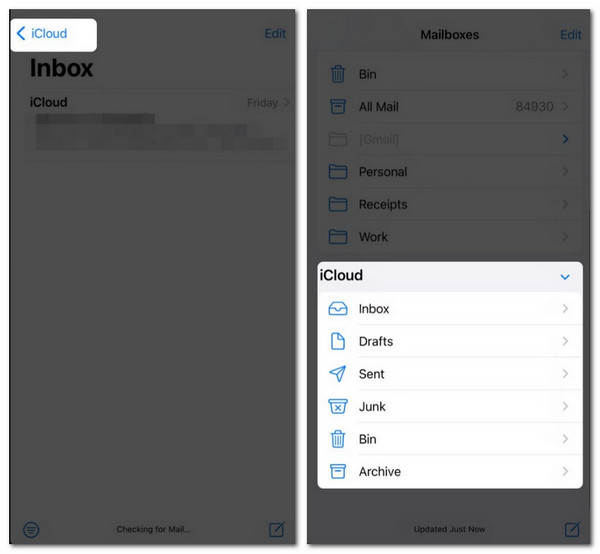
Step 1. Open the Mail app on your iPhone. After that, tap the "Mailboxes" at the top left corner of the screen.
Step 2. Then, select "iCloud" under the Mailboxes section to access your iCloud emails. You can also access your other folders under the iCloud section.
Step 3. Once you are done checking on them, you can tap the "Back arrow" button next to the iCloud at the top of the screen.
How to Set Up iCloud Email on a Mac with Mail App
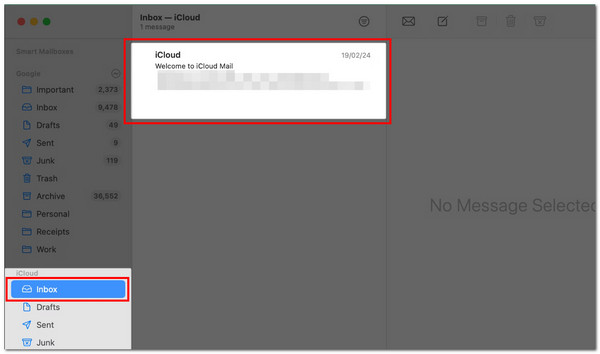
The third solution is to set up your iCloud email on your Mac using the built-in Mail app. Once set up, your messages will automatically sync with your other Apple devices. So, how to access iCloud Email on your Mac via the Mail app? Here are the steps you need to follow:
Step 1. Open the Mail app on your iPhone.
Step 2. Tap the "Mailboxes" button at the top left corner of the iPhone screen.
Step 3. Then, tap the "iCloud" button under the Mailboxes section. You can access all iCloud emails and other folders.
Step 4. After checking, you can tap the "Back arrow" button to finish the process.
How to Access iCloud Email on a Windows PC
The fourth solution is to access your iCloud email on a Windows computer using the built-in Mail app. This makes it easy to check and manage your iCloud messages without opening a browser. Now, how to find and open iCloud emails from a PC?
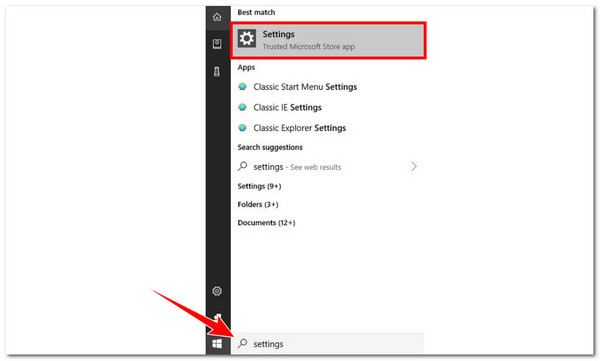
Step 1. Run the "Settings" app on your Windows PC by typing "Settings" in the search box next to the "Start" button. After that, click "Accounts".
Step 2. Next, search for "Email & accounts" and click it. Then, click "Add an account" under the Email, Calendar, and Contacts section.
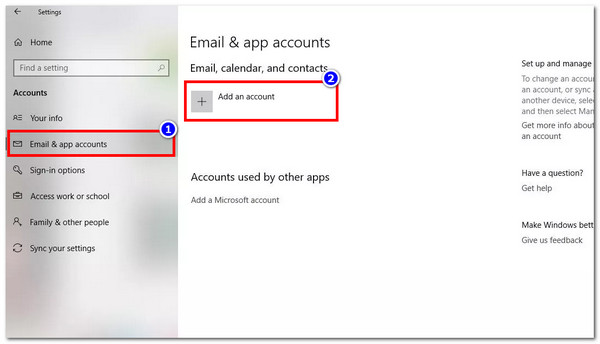
Step 3. Choose "iCloud" from the list. After that, enter your "Apple ID" and its "password", and then click "Done" once your account is verified.
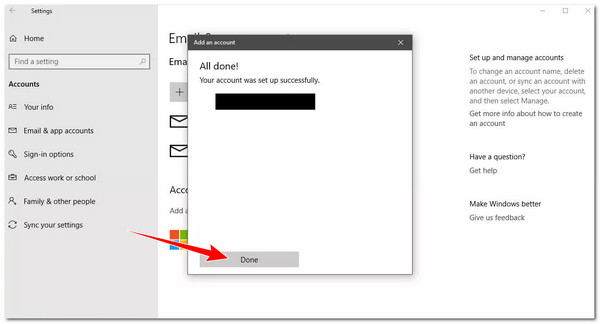
Step 4. After that, type "Mail" in the Windows Search box and open the "Mail: Trusted Microsoft Store app". Your iCloud inbox will appear, and it will allow you to check drafts, sent emails, and other folders directly from your computer.
Troubleshooting: Common iCloud Email Access Problems & Fixes
There you have it! Those are the 4 easy ways to access iCloud email through the web, iPhone, iPad, and Windows PC. As you can see, there is no official iCloud for Android version yet. Now, even after setting up your iCloud email, you might sometimes run into issues or problems. The good news is that most problems can be fixed easily. Here are the common issues and simple solutions to get your iCloud email working smoothly.
1. Can't Sign In
If you can't sign in to your iCloud email, make sure you are entering the correct "Apple ID" and "password". If you forgot your password, you can reset it at Apple ID recovery. Also, check whether your internet connection is strong and stable before trying again.
2. Two-Factor Authentication Errors
If you see an "Attention required" message, it may be due to two-factor authentication. To solve this, you can use a trusted device, or the verification code sent to your phone/email to sign in. If it still doesn't work, you can access your iCloud email through a web browser.
3. Mail Not Syncing Across Devices
If your emails are not syncing across devices, check that the "Mail" option is turned on in iCloud settings on each device. You can also try restarting or refreshing the Mail app. Make sure your device's software is updated to the latest version to avoid compatibility issues.
4. Missing Folders or Emails
The last issue you might encounter is that if you can't find some emails or folders, first check that you're signed into the correct "iCloud" account. Look in "Drafts", "Sent", "Trash", and other folders to see if your emails are there. you still cannot find them, sign out and then sign back in to the same account. This usually fixes the issue.
Bonus Tips: How to Backup iCloud Email Data After Accessing
That's it! Those are the 4 easy ways on how to access iCloud email, and the troubleshooting tips you can use when you encounter any issues. Now, it's also essential to back up your data to avoid losing important emails, attachments, and contacts, and the best tool you can use is AnyRec PhoneMover. This tool is designed to scan your devices for all files thoroughly, including iCloud emails, and categorize them based on their file types. It also lets you view the scanned iCloud emails and choose which one you wish to back up. You can then back up the iCloud emails to another iOS device, Android, or PC, all in just a few clicks!

Allows you to transfer or backup iCloud emails to another device with no factory reset.
Enables you to transfer files at maximum speed without relying on the internet.
Capable of scanning, skipping, deleting, and merging duplicate files.
Let you choose specific iCloud emails to back up without overwriting.
Secure Download
Conclusion
Knowing how to access iCloud email with/without iPhone doesn't have to be confusing. Whether you're using a web browser, an iPhone or iPad, a Mac PC, or a Windows computer, there are simple ways to check your inbox and manage your messages. If you ever encounter problems, the tips can help fix common issues. For extra peace of mind, you can back up your iCloud emails using a tool like AnyRec PhoneMover, so your emails, attachments, and contacts stay safe. Use this tool today and start your backup journey!
Secure Download
Related Articles:
About Our Author